How To Disable Internet Explorer!

0 comments
Once you’ve picked your new browser, it’s time to call things off with IE. This poses a bit of a problem, as many Windows functions and programs depend on IE’s rendering engine. While it’s technically possible to remove IE completely, you may be better off leaving it in, if you value functionality. In Windows XP and Vista, you can do the next best thing: Removing access to IE for all users of your system.
So, how do you disable (block access) to Internet Explorer?
From the Start Menu, click on “Programs.” An icon labeled “Set Program Access and Defaults” should be near the top of the menu. If it is, you may skip the next paragraph. If it’s not, please continue below.
image
You’re going to want to open your Control Panel, also from the Start Menu. Next, open the Add or Remove Programs window. You’ll have four choices on your left. What you need is the lowest option: Set Program Access and Defaults. I’m sure you’re anxious to break this off. We’re almost done.
image
Select the “Custom” option, and then go ahead and designate what you want your default programs to be. You may disable access to Internet Explorer by clearing the checkbox next to it. All program shortcuts to Internet Explorer will be removed, and your default Internet browser on the Start Menu will be of your choice.
image
There may arise a situation during which you may need to open IE. Most often it will be to open a site which doesn’t play nicely with other browsers. With all the shortcuts gone, just open the Run box (hold the Windows Key and press R), type “iexplore” then hit OK. See? While you’re no longer exclusive, you and IE can still be friends. It’s alright, really. I won’t tell the other browsers.

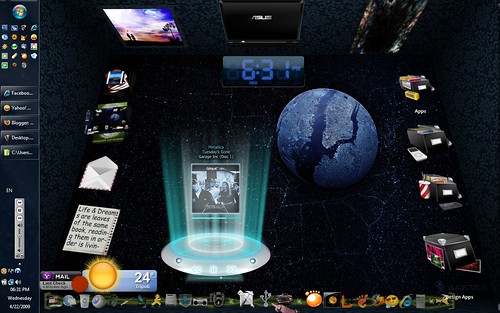
My New Desktop Look Using BumpTop.

3 comments


Take a good glimpse of what would be the desktops of the future may look like, a 3d desktop. It features a "realistic feeling" of your desktop just like in real life.
---------------------------------------------------
This wonderful program is called Bumptop. Though not revolutionary because it is not the first of its kind, it has many features than its predecessors. My favorite feature of this wonderful programs are customizable icons, icon physics, photoframe/slideshow, stackable icons for those who are obsessive compulsive people who do not want to see their desktop a mess.. Hey, that "messy" look of my desktop still look cool!

I am glad that i have stumbled with this wonderful software and had a glimps of what a future desktop would be!

PS:
Wallaper: Planet- New York [Link]
Dock: RocketDock
Yahoo widgets: Yahoo! mail Checker, Yahoo ! Weather , Digital Clock
CD Art Display (CAD): Phase for CAD [link], To use this skin you will need to download and install CAD1.0 [link] and upgrade to CAD2.0beta4 [link] . If you don't use CAD, shame on you. It's free and awesome
OS = Windows Vista with Windows 7 theme (bumptop works with XP)
Ram usage = 5-10% only
Videocard = 64mb minimum

My Desk-top Wallpaper

2 comments


While I was Setting above my Laptop i was thinking 2 do Something dat maybe some kinda of Fun & Dat was playing with Photoshop to design my own wallpaper just like a real Wall room my mind was tellin' me a lot of ideas but i thought dis would be better.
So I hope u Like it, Trust me it's not dat Dificult 2 do it I toke all da iCons & da wallpaper from my Favorite Photo Website maybe some of have heard of it but trsut me ppl it's Amazing u can found any Pic u want in it, also u can get a photoshop tamplates if u want so be free & check it maybe u'll find it useful like a photo search engine.
http://deviantart.com

Thnx 4 Viewing Dis anyway.
Peace.

Hotmail Finally Enables POP3 Worldwide [Windows Live]

0 comments
The Windows Live team announces that POP3 access to Hotmail has been enabled worldwide, finally ending years of your email being trapped behind Microsoft apps.
They've been rolling out these changes for a while now, with the US finally getting access last month, but POP3 access is finally available to everybody. Setting it up is fairly simple in most email applications—just create a new account using the following details from the Windows Live team:
POP server: pop3.live.com (Port 995)
POP SSL required? Yes
User name: Your Windows Live ID, for example yourname@hotmail.com
Password: The password you usually use to sign in to Hotmail or Windows Live
SMTP server: smtp.live.com (Port 25)
Authentication required? Yes (this matches your POP username and password)
TLS/SSL required? Yes
Lifehacker readers are obviously more partial to the geek-friendly Gmail that has not just POP3 but IMAP support, but most of us still have a hotmail account laying around—which you can finally backup using Fetchmail or Thunderbird (just modify the instructions to use your Hotmail account instead).

How to watch YouTube videos in cinema sytle

0 comments
youtube-cinema
Recently, YouTube has come out with a lot of news. As a matter of fact, you can watch YouTube videos in HD resolution, without speaking about the next, imminent release of full movies. With some many things to play with, wouldn’t be nice to have something which allows YouTube users to watch video in a cinema style?

Well, if you are one of those guys with a special obsession for cinema and YouTube, now with YouTube Cinema you can satisfy all your wishes. In fact, this extraordinary add-on for Firefox lets you watch YouTube videos in a cinema style. All you have to do is install the add-on and enable it. Once the automatic mode is enabled you will be able to see videos in a panorama, cinema fashion. You will also be able to change the background color and the video size at will. Furthermore, the whole Firefox window will be completely reserved for the movie, preventing you from being sidetracked from useless things such as comments, writings, other videos etc.

If you want to know more, or if you just want to download it, click here.

The BIG Book of iTunes [Free PDF Download]

0 comments
iTunes is a great way to organize and manage your music and video library. It is also the most popular music player/manager around, very visually aesthetic and at the same time, simple to use. Itʼs perfect for handling large libraries containing thousands of songs.
If you are an owner of an iPhone or iPod Touch, thatʼs even more reason to use iTunes. With iTunes, you can easily sync and transfer songs, audiobooks, movies, TV series and mobile applications to your Apple device.
The iTunes book has got plenty of cool tips for you, some were published on MakeUseOf before and others were collected from different parts of web. Among other things it illustrates easy ways to
  • automatically organize and tag your music
  • add lyrics & cover art to your songs
  • share your iTunes library with others
  • create ring tones from your songs
  • access your iTunes library from other PCs and mobile devices
  • control iTunes via the iPhone or even using your hands and feet
  • use AppleScripts
  • use iTunes shortcuts
and lots more! Grab yourself a free copy below.
Spread the word!
The Big Book of iTunes

Pixlr plugin for Firefox turns your browser into an image editor

0 comments
Pixlr
Pixlr is a web-based image editing application. We first discovered the site a few months ago, and it compares favorably to other web based graphics apps like Picnik and Fotoflexer. You can crop, resize, add effects, or paint your images. And now thanks to a Firefox plugin, importing images to Pixlr is even easier.

Once the plugin is installed, you'll notice a little icon in the Firefox status bar that you can click to automatically import any web page you're on to Pixlr for editing. Just want to edit an image from the web? No problem. Just right click and select Edit in Pixlr. The image editor will open in a new tab and load the picture automatically.

[via Firefox Facts]

GeeMail desktop client for Gmail provides offline access

0 comments
GeeMail
GeeMail is a desktop client for Gmail based on Adobe AIR. In other words, it can run on Windows, Linux, or OS X as long as you have Adobe AIR installed. At its most basic level, GeeMail is a standalone application that you can use to check your email, send, or sort messages without opening a web browser.

But GeeMail also supports offline Gmail access. In other words, you can compose messages while you're away from an internet connection. When you go online again, GeeMail will send them. Google also provides limited offline support to users who install Google Gears.

GeeMail lacks a search box, which is a bit limiting. But what it does provide is super-fast access to your Gmail inxbox.

[via CNet]

10 Greasemonkey scripts you shouldn't browse without

0 comments
One of the main draws for Firefox is how customizable it is, both in appearance and functionality. We've shown you some of our favorite Firefox themes, but if you're looking for more than a cosmetic change in your browsing experience, you should get to know Greasemonkey.

In case you're not already familiar: Greasemonkey is a Firefox add-on that allows you to apply powerful user-created scripts to the sites you visit. Scripts do everything from drastically changing the layout of a site to adding new menus or doing common tasks automatically. Greasemonkey can change a font that annoys you, or it can change the way you use your browser.

Firefox isn't the only browser that can take advantage of userscripts. For Webkit-based browsers like Safari, check out GreaseKit. Opera is capable of running many userscripts through its own User JavaScript feature. Some of the scripts mentioned in this post might only work in Firefox, though.

Here are ten of my favorite scripts. If you're using some good ones that you don't see here, sound off in the comments.

1. Google Account Multi-login:

If you have more than one Google account, grab this script to replace the "log out" link on most Google services with a menu that lets you quickly switch from one of your accounts to another. A nice time saver for Gmail junkies.

2. Helvetireader:

I love the way Helvetireader cleans up Google Reader. Download it if you're interested in viewing Google Reader in a simple red and white layout, all in Helvetica. It gets everything that's not essential to reading your feeds out of the way.

3. Download YouTube Video as Mp4:

Does just what it says. Causes a download link to appear right under the embed codes to the right of the video on any YouTube page. This definitely beats pasting the URL into one of those YouTube Downloader websites.

4. OinkPLUS Music Torrent Site Enhancer:

With this script, you can see artist info (bio, similar artists, tags) on popular music torrent sites like Mininova and ThePirateBay. OinkPLUS gets info from Last.fm, and it's the same music info display that was used on the late, great music torrent site Oink.

5 . Nested Twitter Replies:


If you ever get tired of clicking on username links in Twitter to see what one of your friends just replied to, Nested Twitter Replies is for you. It displays Twitter conversations as threads, so you can follow the whole thing without leaving the page.

6. Twitter and Friendfeed Short URL Expander:

Don't get Rickrolled -- does anyone still do that? -- or sent to a malicious site by a shortened URL on Twitter or FriendFeed. This script expands them so you can see what you're clicking.

7. Remove All Facebook Ads:

Self-explanatory and essential. This even gets rid of those text ads that regular ad-blocker plugins have trouble with. If you use Facebook, don't pass it up.

8. Simplepedia:

Simplepedia strips Wikipedia down to the bare bones. Just elegant, easily readable text, the links, and the included images. All of the sidebars and other layout elements are gone, leaving just the information you're looking for. Simplepedia was also recently reviewed here on Download Squad.

9. Greased Lightbox:

This script makes browsing image sites like Google Image Search, Flickr, Wikipedia, MySpace, deviantART, and FFFFOUND easier by displaying linked images at full size in a lightbox when you click them. The lightbox display includes a link to the image in its original context, in case you want to click through after you've seen it.

10. Linkify Ting:

When this script runs across some plain text that's clearly the address of a website, it turns that text into a link. This is awesome for saving you from a lot of needless copying and pasting.

FaceBook Colour Changer

0 comments
Script Summary:
Gives the option of changing the facebook colour scheme to anything you want using a colour selector.

Instructions

This script is simple and easy to use. To change the colours in facebook, use the following procedure;

  • Ensure you are using the Firefox browser.
  • Ensure that you have the Greasemonkey add-on installed (this requires restarting your browser).
  • When you have Firefox and Greasemonkey, click the install button at the top right of this page.
  • Click to confirm that you wish to install the script, and it will be installed.
  • Now, when viewing any page on Facebook simply go to 'Tools', 'Greasemonkey', 'Userscript Commands...' and then 'Customise facebook colours...'. See the image below for help with this. (Alternatively the same menu can be shown when right-clicking on the monkey on the bottom right).
  • Select the colours you'd like facebook to be, click "Set!", and you're done!

Changing the facebook icon in the top left is simple too. Simply enter the URL of an image on the menu box. Leaving the boxes blank gives the facebook default, and leaving the hover image blank defaults to the normal image. The initial default colours are set to facebook's default.

Any problems or suggestions are welcome in the script discussions.

NB. you need to be using the Firefox web browser with the Greasemonkey extension installed to use this script

Screenshot

Below is a screenshot of where I have picked a pink and black theme, but you can pick any colours you wish.

Customise colours by selecting the menu shown below (whilst you're on a Facebook page);

And pick colours using the box that pops up;

 
^ Scroll to Top